

Visual page builder for Joomla 6
Design in Joomla.
Keep the HTML.
Open M3 Solaris from a Joomla article. Drag blocks into place and arrange your page. The HTML is saved in the article itself.
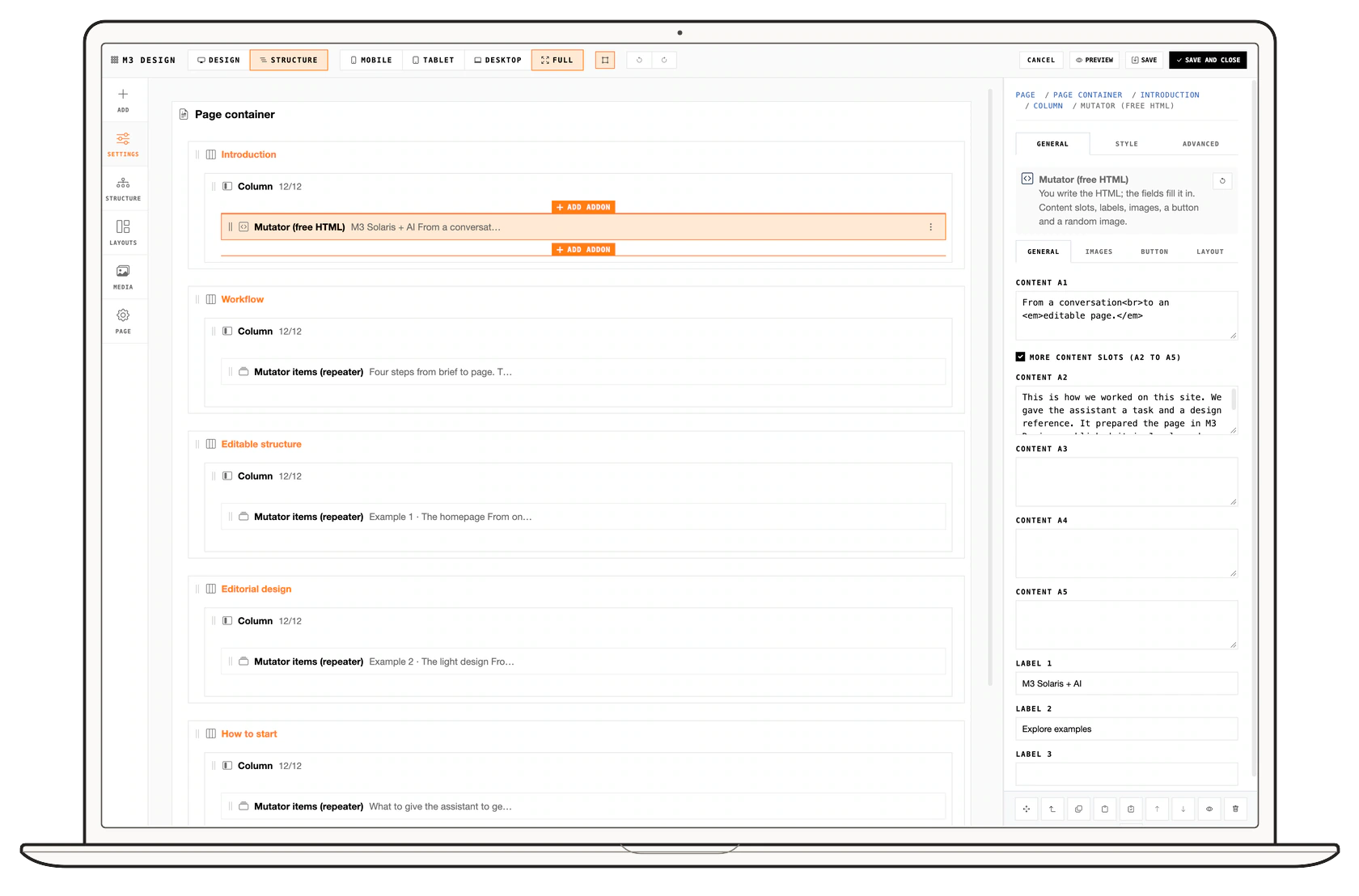
From an article to a page.
-
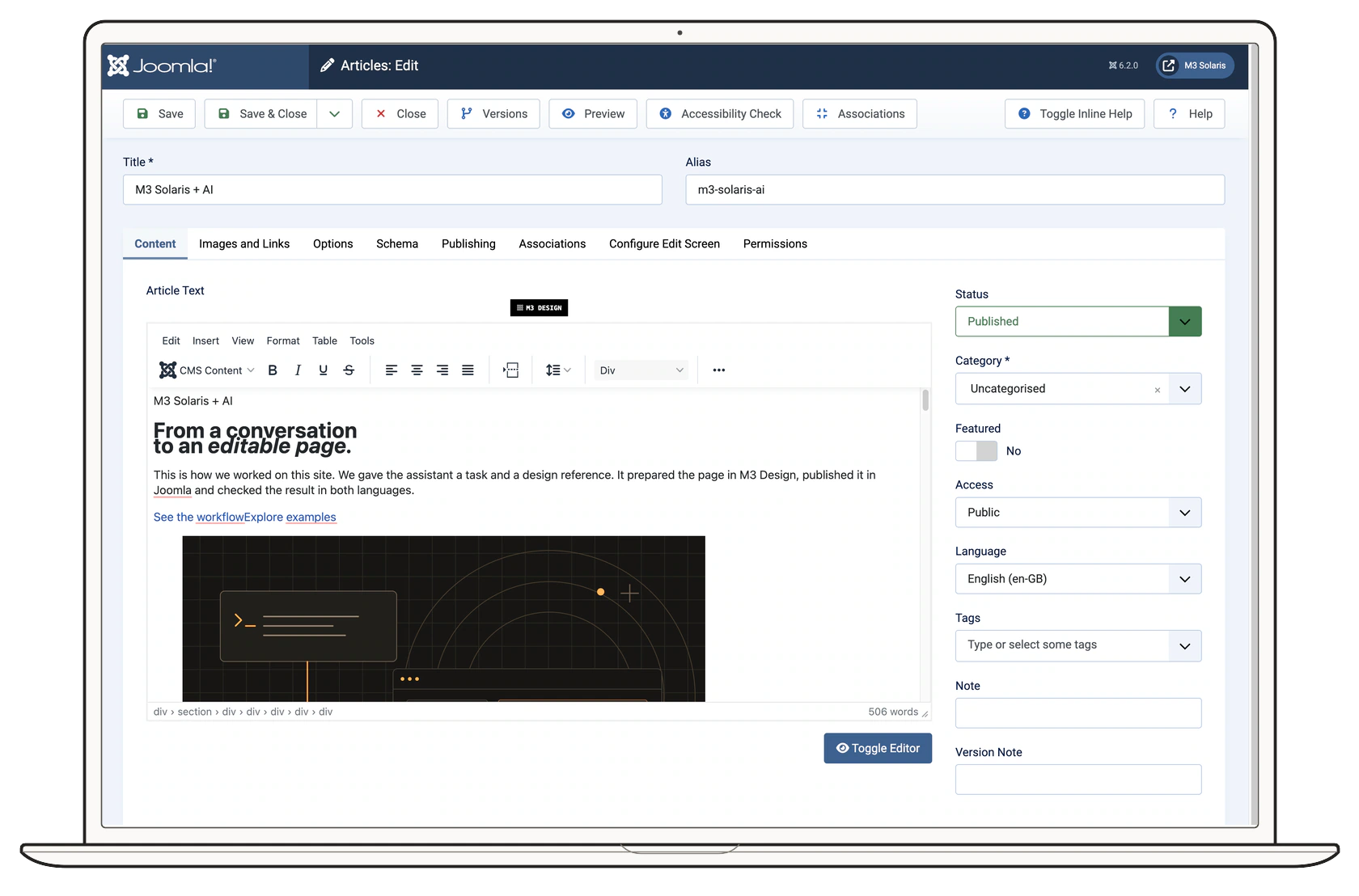
Open the article
Select M3 Design from the Joomla article editor.
-
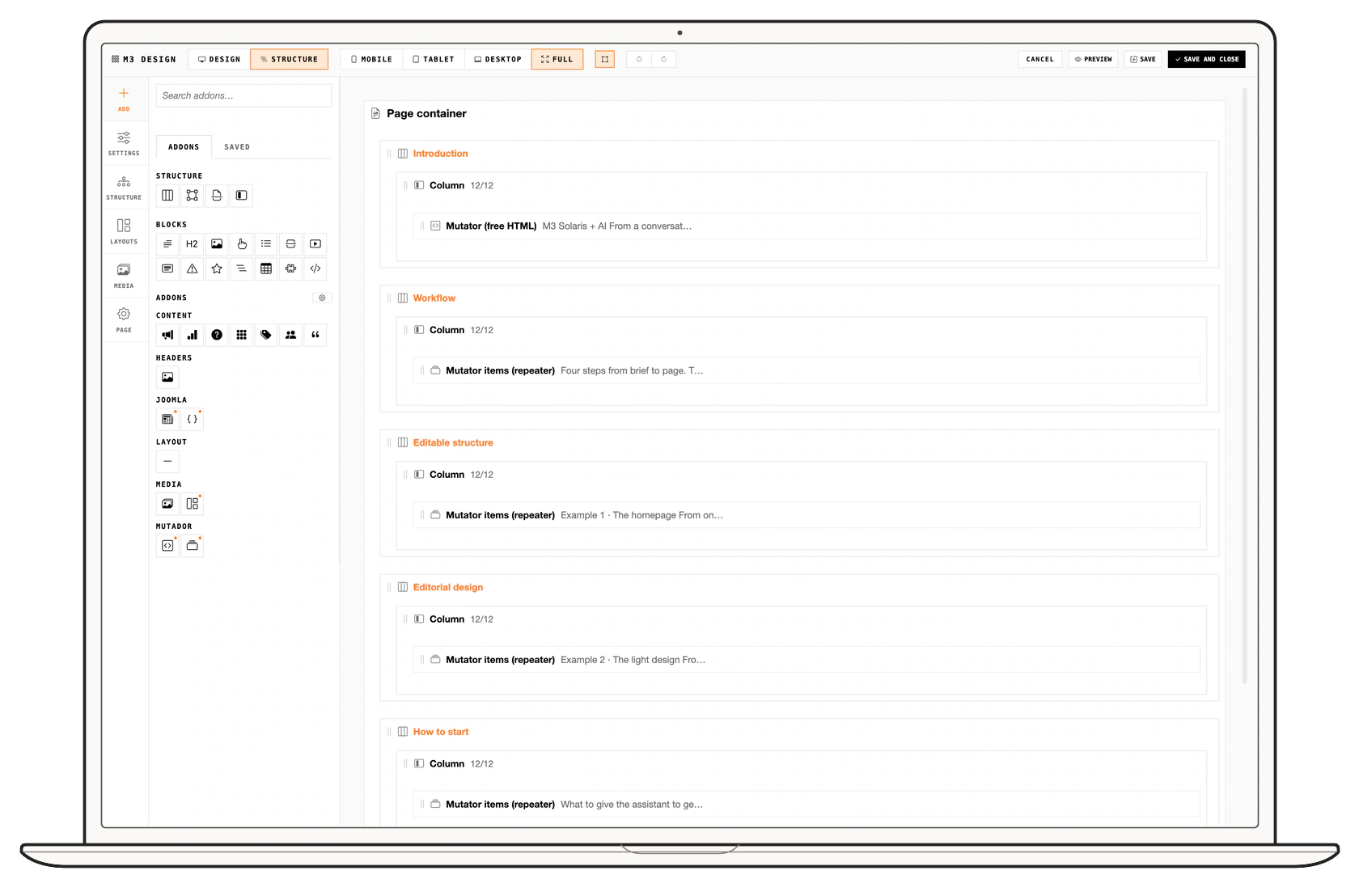
Build your layout
Add sections and blocks. Switch to Structure to reorder them.
-
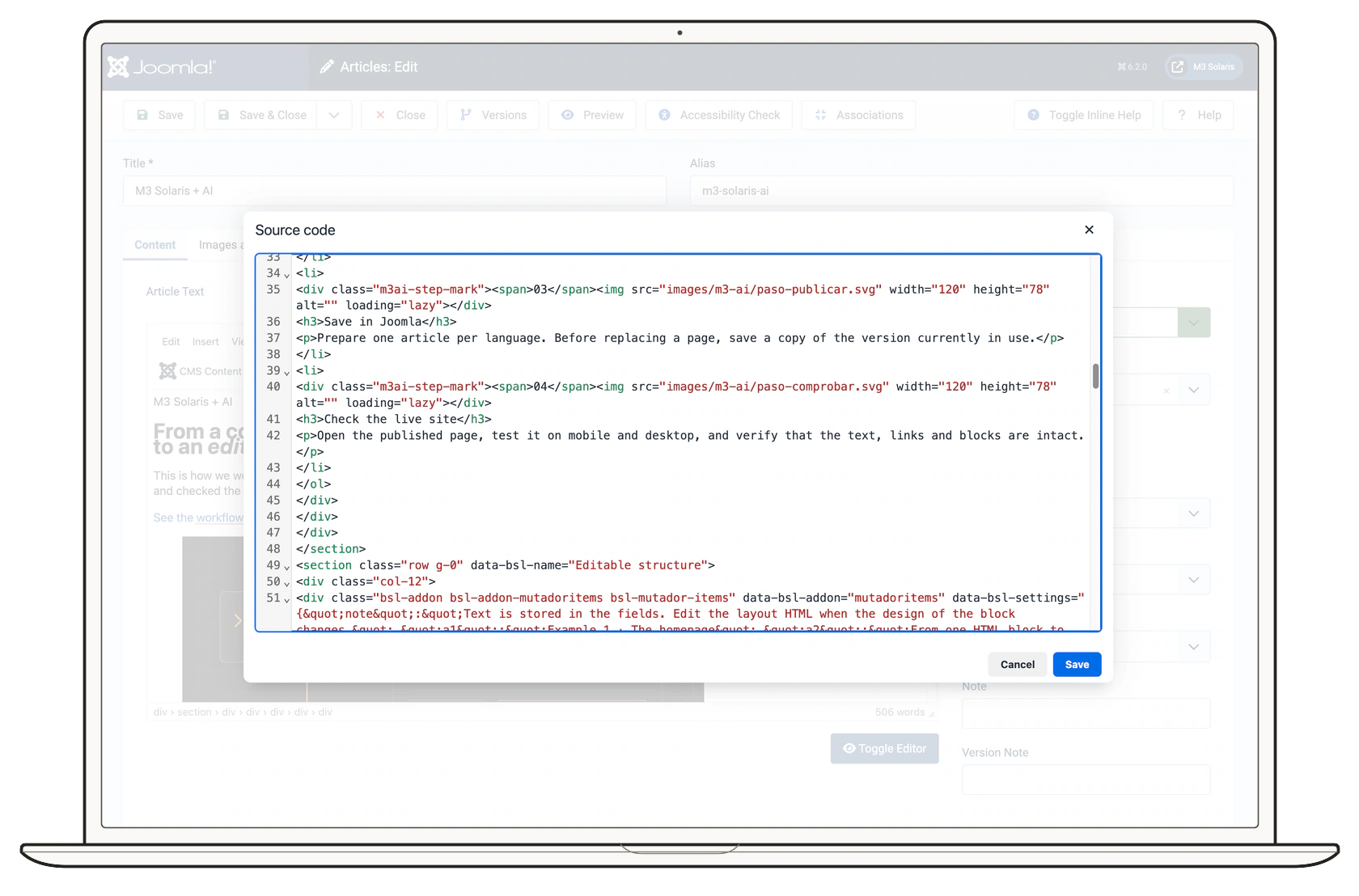
Save and publish
The layout is stored as HTML in your article. Its appearance comes from the template and styles loaded by your site.
Try Lite. Build your site with Nuvi.
Lite
Download the free builder and try our approach directly in your own Joomla articles.
- Visual canvas and Structure view
- Responsive grid
- Addons for hero sections, galleries and FAQs
Pro in Nuvi projects
When you commission a Joomla site from us, we integrate Pro into the project so you can reuse what we build.
- Page and section library
- Manager and editor for custom addons
- Layout import, export and audit