

Your assistant,
connected to Joomla.
M3 Solaris MCP is the component that connects an AI assistant to your Joomla 6 installation. It gives the assistant tools to work with your content, navigation and M3 Design pages using the connected account’s permissions.
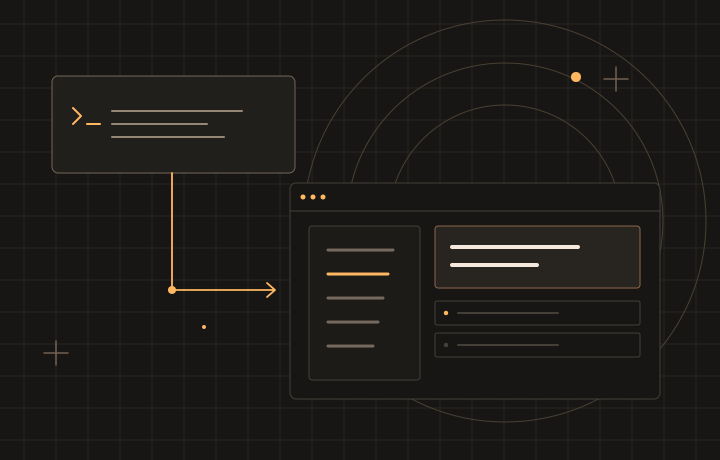
Connect once, then ask for a change.
MCP is the protocol that lets your assistant use tools on your site. The M3 Solaris MCP component gives you your connection address, setup guides and diagnostics inside Joomla.
-
01

Install and enable
Install the package in Joomla 6. Open Components → M3 Solaris MCP and use the button to open the connection plugin and enable it.
-
02
Connect your assistant
Copy the address shown for your installation and put your Joomla API token in your client’s private settings. Setup guides cover Codex, Claude, Claude Code, Cursor and GitHub Copilot.
-
03

Test with a read
Run the diagnostics to check the address and access. Copy the ready-made message into your chat so the assistant can verify which site responds.
-
04
Ask for the first change
Say what should change and in which language. The assistant finds the content, applies the change in Joomla and returns the result for you to review.
What the assistant can do.
The component uses Joomla for content and menus, M3 Design for page fields and your site style for authorised CSS.
Articles, categories and menus
Create categories and articles, save drafts, publish, trash or restore articles. Add menu entries that link to articles and associate Spanish and English versions.
Editable M3 pages
Create or apply a complete design with editable sections if your account can import layouts. For text changes, the assistant edits the Mutador or Mutador Items field.
Site styles and project memory
Update active CSS files you have authorised and save project conventions. Review recent operations from the Joomla component.
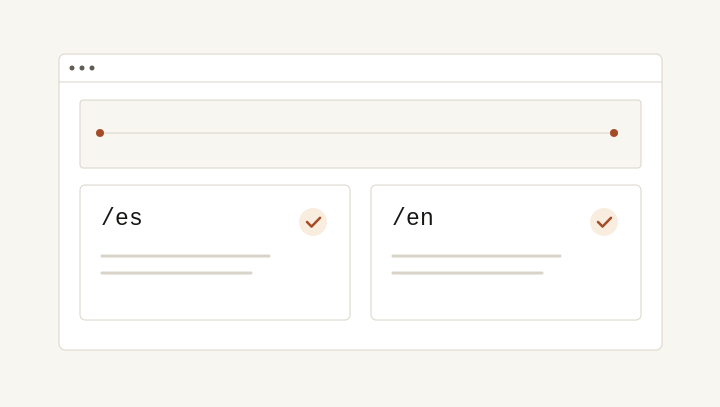
A new page in two languages.
Ask your assistant to prepare a page, link it to its translation and add it to your navigation.
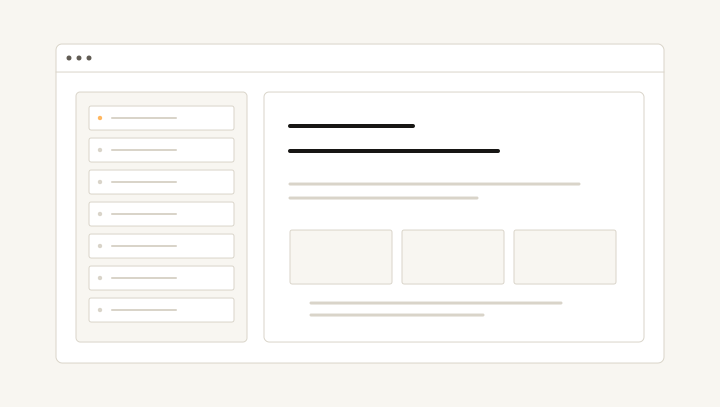
Try the MCP in your Joomla installation.
Open Components → M3 Solaris MCP → Connection. You’ll see your site address, the test prompt and setup guides for each client. Get in touch if you need help setting it up.Talk to Nuvi