

Install M3 Solaris and build your first page.
Follow the guide from the Lite ZIP to a published Joomla article. You’ll build a two-column page, check it on mobile and see where Joomla saves its HTML.
Install M3 Solaris Lite.
Use the administration area of a Joomla 6 site and an account with permission to install extensions.
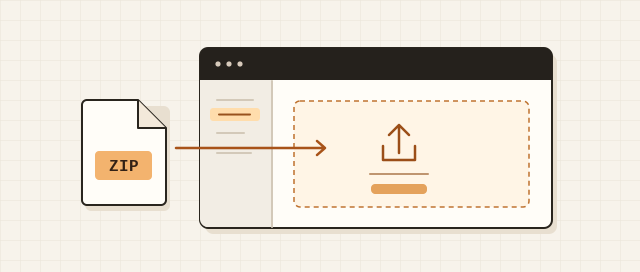
Download the ZIP
Download Lite. Keep the package as a ZIP for the Joomla installer.
Upload the package
Go to System → Install → Extensions. Open Upload Package File and select the ZIP. Joomla’s installation instructions.
Check the installation
Wait for Joomla’s confirmation. In System → Manage → Plugins, search for Editor Button - M3 Solaris and check that it is enabled.
Find M3 Solaris
Open Components → M3 Solaris → Diagnostics for the installed version and a status check.
Build a two-column article.
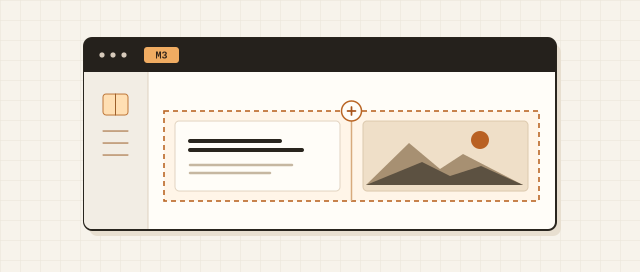
Start with a heading and a paragraph on one side and a photo on the other.
Create a draft
Go to Content → Articles → New. Give the article a title and leave it unpublished while you work.
Open M3 Design
Use the M3 Design button in the editor. In TinyMCE, look in CMS Content if the button is not shown separately.
Insert a section
Choose Add → Section with layout and select two equal columns. Insert Heading and Text in the first column.
Add an image
Insert an Image block in the second column. Pick an image from Joomla Media and write alternative text if it conveys information.
Edit content and structure.
Open the same article and select M3 Design whenever you want to continue working.
Design
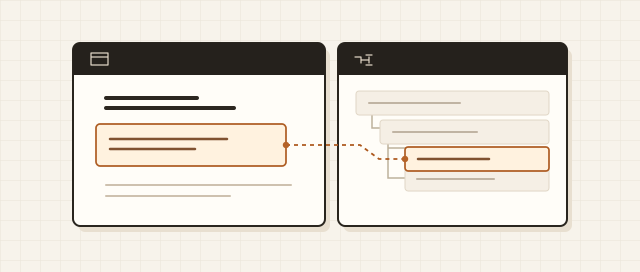
Select a block on the canvas. Double-click a text block to edit it, or use the settings panel to adjust its options.
Structure
Select the section, column or block you need in the hierarchy. Drag items into the order you want.
Addons
Choose an included addon such as a hero or FAQ. Edit the text, images and links in its own settings.
Preview, save and publish.
Check both the editor preview and the public page.
Preview on mobile
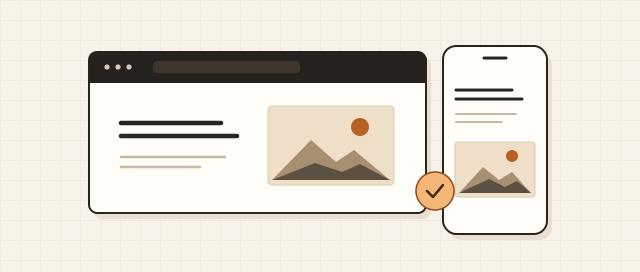
Switch between Mobile, Tablet and Desktop. Look for overflowing images, cramped text and columns in the wrong order.
Save in Joomla
Save saves the article and keeps the builder open. Save and close saves it and returns to the Joomla article list. The layout is stored as HTML in the article.
Publish and open it
Set the article status to Published. For a dedicated URL, create a menu item of type Articles → Single Article. Joomla’s menu item guide.
If something gets in the way.
Start by checking the article and extension versions.
The button is missing
Check the editor button plugin is enabled. In TinyMCE, look under CMS Content and verify that your account can edit the article.
The live page looks different
Check that the menu item points to the saved article and language. Compare the site on mobile. The template and the styles loaded by the site determine how the stored HTML looks.
Update Lite
Back up the site first. When a newer Lite ZIP is available, install it over the existing edition using Upload Package File. Check the version in Diagnostics and reopen a test article.
See how a real page was built.
Our M3 Solaris and AI walkthrough shows how we converted the homepage into editable sections and checked the finished layout. For troubleshooting, open Support.